
PostsDash guide
How to view your X Following feed in a grid
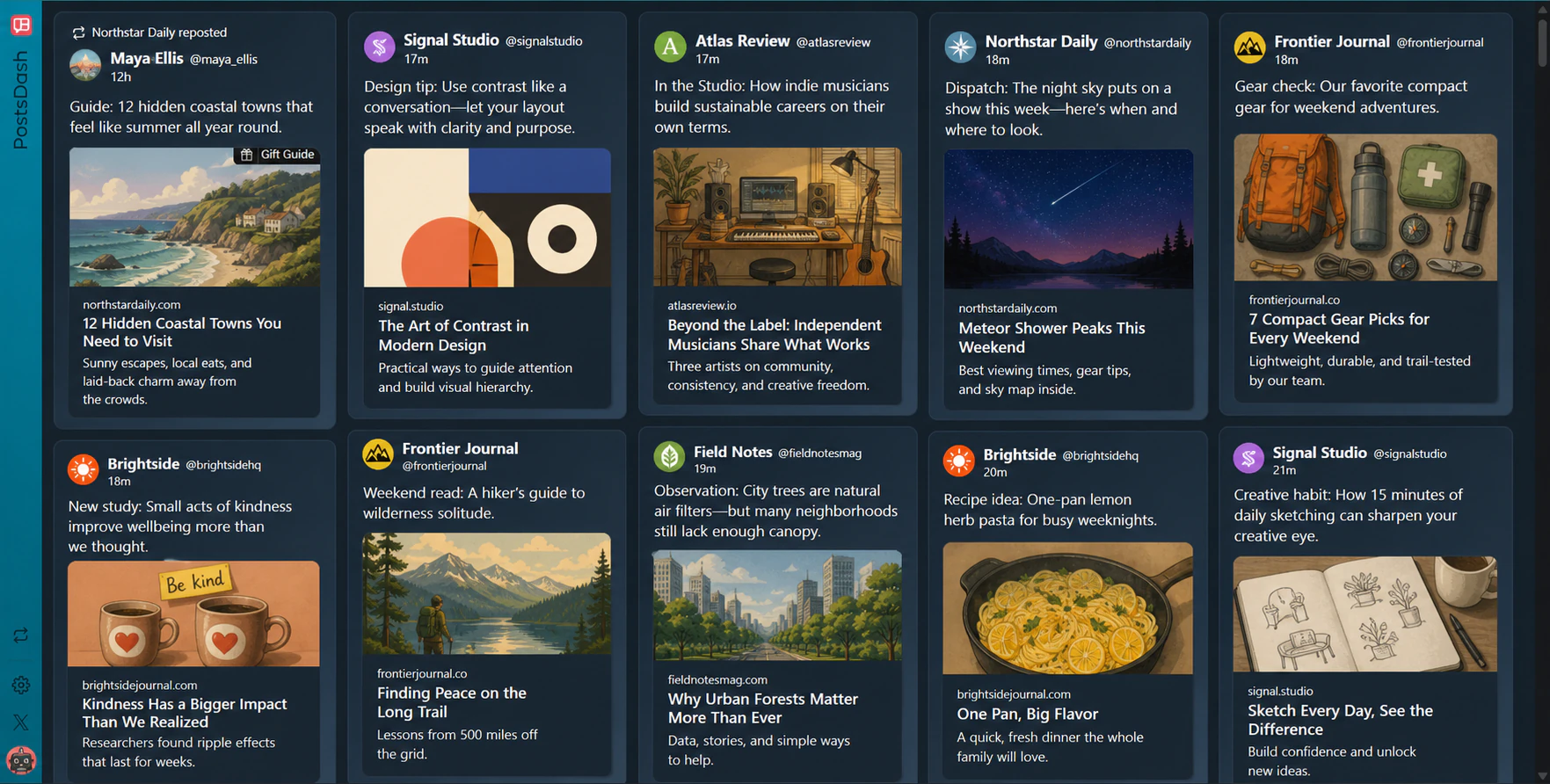
To view your X (Twitter) Following feed in a grid, install PostsDash, sign in on x.com, and select PostsDash in the X sidebar. The extension loads your Following feed directly and arranges posts side by side in one responsive layout.
By PostsDash · About 3 minutes to read
1. Install PostsDash for your browser
PostsDash is free and available for Chrome, Firefox, Edge, and Opera. Choose your browser and add the extension from its store:
You need an X account and a signed-in session in the same browser.
2. Open X and launch PostsDash
Go to X in your browser and sign in. If X was already open when you installed the extension, reload the page.
Select PostsDash in X’s left sidebar. The dashboard opens and loads your Following feed. You do not need to select X’s Following tab first.
3. Browse your Following feed in a grid
PostsDash has one responsive grid layout. There is no layout to choose or column count to configure: the grid adapts to the available space in your browser window. A wider window gives more posts room to appear side by side.
Open a post for a closer look, or select an image to use the media viewer. PostsDash checks for new posts automatically while the dashboard is visible and the browser tab is active. You can also select Refresh posts in the dashboard sidebar.
Optional: launch PostsDash automatically
Open Settings using the gear icon in the PostsDash sidebar, then enable Launch PostsDash automatically. PostsDash will open automatically when you visit X’s home page in that browser. You can turn this setting off again at any time.
Requirements and limitations
- Browser extension required. PostsDash runs on x.com with the extension installed. It does not change the X mobile app.
- Following feed. The dashboard loads the Following timeline, rather than providing separate grids for For You, lists, or search results.
- Updates depend on X. A signed-in session, internet connection, and working X responses are required. Automatic checks pause while the tab is hidden; new posts are not guaranteed to appear instantly.
- A different view of the feed. Promoted entries are skipped, and unsupported entries may not appear. The grid is not an exact copy of every item in X’s timeline.
If PostsDash does not appear or load
Check that the extension is enabled and that you are signed in to X in the same browser, then reload x.com. If the dashboard opens but does not update, try Refresh posts. Changes to X can affect compatibility; check for an extension update if the problem continues.
Still stuck? Contact PostsDash with your browser, extension version, and a description of what happened.
Install PostsDash for your browser or explore the PostsDash features.